Web Console
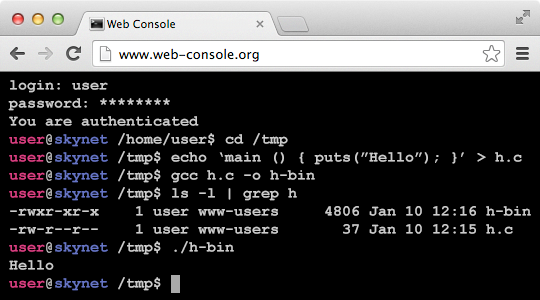
- Web Console is a web-based application that allows to execute shell commands on a server directly from a browser (web-based shell).
- Web Console is very light, does not require any database and can be installed and configured in about 3 minutes. Installation process is really simple:
- 🔗 Download the latest version of the Web Console.
- 📦 Unpack archive and open file
webconsole.phpin your favorite text editor. - ✏️ At the beginning of the file enter your
$USERand$PASSWORDcredentials. Edit any other settings that you need (see description in the comments). - 🖥️ Upload changed
webconsole.phpfile to the web server and open it in the browser.
Preview
Features
-
🔆 Clean interface
Web Console has an easy to use and clean interface. It looks and feels like a real terminal. -
🚀 Simple installation
Installation and configuration process is very simple. Web Console does not require any database and can be installed and configured in about 3 minutes. Web Console can be easily installed on a shared web hosting. -
⭐️ Secure
You can configure HTTPS (SSL) on your web server and all Web Console traffic will be encrypted. Also, Web Console has a flag for search engines that will disallow the Web Console page from indexing. -
⚙️ Open-source
Web Console is open-source application and can be customized by anyone. Also, third-party components are used in the Web Console. Checkout Web Console repository at GitHub.
Frequently Asked Questions
-
💬 When I pass command to Web Console, under which user account it is executed on the web server?
By default Web Console is running under the web server user account (or for some web server configurations it is a specified user, who run scripts). All commands, which you pass to Web Console, executed using that user account. For example, execute
idcommand in the Web Console and you will see current user account information. For example:user@skynet /tmp$ id uid=777(www) gid=777(www) groups=777(www) -
💬 How to run command with
sudo(asroot) using Web Console?To run commands using
sudoyou need to configure/etc/sudoersfile. You can read more information about it in sudo official manual page. For example, executeidcommand in the Web Console and you will see user account under which Web Console is running:user@skynet /tmp$ id uid=777(www) gid=777(www) groups=777(www)Now you need allow that user to use
sudo. For example, we will allowwwwuser to run any commands asrootusingsudowithout password (but, we are highly recommend to run Web Console with minimal permissions, depends on your Web Console usage requirements). To do that, add the following line to the/etc/sudoersfile:www ALL=(ALL) NOPASSWD: ALLNow you can execute commands with
sudo, for example:user@skynet /tmp$ sudo id uid=0(root) gid=0(root) groups=0(root) -
💬 How to run
vi/vimorping(commands that waiting for some input or executes something infinitely using Web Console)?When Web Console executes command on the web server side, it is waiting for command result (output) and sends that result back to you. So, if your command is waiting for some input (like
vi/vim) or executes something infinitely (likeping) you can’t directly send input (orCTRL-C) to that kind of commands using Web Console. As alternative, you can usesedtext editor (see sed website) or tools like Expect that will pass required input to that kind of commands. -
💬 How to run command on remote (another) server using Web Console?
Just write a script that will run passed command on the remote server and simply call this script with Web Console and pass command to it. You can easily customize Web Console source code to run this script automatically for all passed commands (see Web Console repository at GitHub).